
CSS can be tricky. It can also be incredibly easy. I had a lot of help getting my head wrapped around CSS when I was first starting out and I take great pleasure in helping others the same way I was first helped: with solid code examples to learn from.
Here, we’re going to lay out a WordPress Theme CSS development arsenal for you:
- A stylesheet that resets default CSS across all web browsers and makes a sane standard we can work from
- A set of 5 fluid stylesheets that will create ALL the common blog and website layouts you expect—and each one ready to adapt into a fixed width layout.
- Fonts with rem units so that they are easy to adapt
- Many global and common markup styles pre-defined.
- Simple responsive navigation menu for small screens.
- Default button styles.
- A blank, commented stylesheet with all major selectors included, ready for your styles.
- An example stylesheet with a sample, CSS-only design so that you can see the selectors in action, and build off of it.
- An introduction to RTL stylesheets, with a working RTL stylesheet for our sample CSS-only design.
Ready to hit the target?
Reset CSS
Our Reset CSS is adapted from Eric Meyer’s famous Reset CSS with some minor, minor changes. Basically what it does is take all the typographical defaults of every browser and … obliterates them. You’re left with a squashy, gray mess.
It’s beautiful.
What this does is equalize the rendering of every browser, leaving you free to ignore countless individual quirks particular to each one.
Using it is simple. Add the following to your style.css, at the very top, immediately after the initial comments section.
/* =Reset
-------------------------------------------------------------- */

html, body, div, span, applet, object, iframe,
h1, h2, h3, h4, h5, h6, p, blockquote, pre,
a, abbr, acronym, address, big, cite, code,
del, dfn, em, font, ins, kbd, q, s, samp,
small, strike, strong, sub, sup, tt, var,
dl, dt, dd, ol, ul, li,
fieldset, form, label, legend,
table, caption, tbody, tfoot, thead, tr, th, td {
	border: 0;
	font-family: inherit;
	font-size: 100%;
	font-style: inherit;
	font-weight: inherit;
	margin: 0;
	outline: 0;
	padding: 0;
	vertical-align: baseline;
}
html {
	font-size: 62.5%; /* Corrects text resizing oddly in IE6/7 when body font-size is set using em units http://clagnut.com/blog/348/#c790 */
	overflow-y: scroll; /* Keeps page centred in all browsers regardless of content height */
	-webkit-text-size-adjust: 100%; /* Prevents iOS text size adjust after orientation change, without disabling user zoom */
	-ms-text-size-adjust: 100%; /* www.456bereastreet.com/archive/201012/controlling_text_size_in_safari_for_ios_without_disabling_user_zoom/ */
}
body {
	background: #fff;
}
article,
aside,
details,
figcaption,
figure,
footer,
header,
hgroup,
nav,
section {
	display: block;
}
ol, ul {
	list-style: none;
}
table { /* tables still need 'cellspacing="0"' in the markup */
	border-collapse: separate;
	border-spacing: 0;
}
caption, th, td {
	font-weight: normal;
	text-align: left;
}
blockquote:before, blockquote:after,
q:before, q:after {
	content: "";
}
blockquote, q {
	quotes: "" "";
}
a:focus {
	outline: thin dotted;
}
a:hover,
a:active { /* Improves readability when focused and also mouse hovered in all browsers people.opera.com/patrickl/experiments/keyboard/test */
	outline: 0;
}
a img {
	border: 0;
}
There’s no need to memorize the reset styles. Just paste them to the top of your stylesheet each time you start a new project. Reload your page and check how it looks in multiple browsers (if you can). It’s wonderfully gross, isn’t it?
Rebuild CSS
Our Rebuild CSS is my own personal invention adapted from an early version of the Blueprint CSS typography stylesheet and refined first in Thematic and, most currently, in the Underscores Project. What it does is swing back some vertical rhythm in our pages, but in a really smart way.
What I’ve tried to do with this iteration of my typography-rebuild CSS is combine the best of both worlds for web typography: using rems (with pixel fall backs) for font height, with relative line-height for the main declaration on the body element, and Ems for all subsequent vertical margins (like for paragraphs and lists).
What does this mean? It’s really easy to set your font height later—without doing any math—and have all of your typographical elements follow suit with an appropriate vertical rhythm (the vertical space between type elements like paragraphs and lists).
Let’s add the rebuild style rules right after our reset.
/* =Global
----------------------------------------------- */

body,
button,
input,
select,
textarea {
	color: #404040;
	font-family: sans-serif;
	font-size: 16px;
	font-size: 1.6rem;
	line-height: 1.5;
}

/* Headings */
h1,h2,h3,h4,h5,h6 {
	clear: both;
}
hr {
	background-color: #ccc;
	border: 0;
	height: 1px;
	margin-bottom: 1.5em;
}

/* Text elements */
p {
	margin-bottom: 1.5em;
}
ul, ol {
	margin: 0 0 1.5em 3em;
}
ul {
	list-style: disc;
}
ol {
	list-style: decimal;
}
ul ul, ol ol, ul ol, ol ul {
	margin-bottom: 0;
	margin-left: 1.5em;
}
dt {
	font-weight: bold;
}
dd {
	margin: 0 1.5em 1.5em;
}
b, strong {
	font-weight: bold;
}
dfn, cite, em, i {
	font-style: italic;
}
blockquote {
	margin: 0 1.5em;
}
address {
	margin: 0 0 1.5em;
}
pre {
	background: #eee;
	font-family: "Courier 10 Pitch", Courier, monospace;
	font-size: 15px;
	font-size: 1.5rem;
	line-height: 1.6;
	margin-bottom: 1.6em;
	padding: 1.6em;
	overflow: auto;
	max-width: 100%;
}
code, kbd, tt, var {
	font: 15px Monaco, Consolas, "Andale Mono", "DejaVu Sans Mono", monospace;
}
abbr, acronym {
	border-bottom: 1px dotted #666;
	cursor: help;
}
mark, ins {
	background: #fff9c0;
	text-decoration: none;
}
sup,
sub {
	font-size: 75%;
	height: 0;
	line-height: 0;
	position: relative;
	vertical-align: baseline;
}
sup {
	bottom: 1ex;
}
sub {
	top: .5ex;
}
small {
	font-size: 75%;
}
big {
	font-size: 125%;
}
figure {
	margin: 0;
}
table {
	margin: 0 0 1.5em;
	width: 100%;
}
th {
	font-weight: bold;
}
button,
input,
select,
textarea {
	font-size: 100%; /* Corrects font size not being inherited in all browsers */
	margin: 0; /* Addresses margins set differently in IE6/7, F3/4, S5, Chrome */
	vertical-align: baseline; /* Improves appearance and consistency in all browsers */
	*vertical-align: middle; /* Improves appearance and consistency in all browsers */
}
button,
input {
	line-height: normal; /* Addresses FF3/4 setting line-height using !important in the UA stylesheet */
	*overflow: visible;  /* Corrects inner spacing displayed oddly in IE6/7 */
}
button,
html input[type="button"],
input[type="reset"],
input[type="submit"] {
	border: 1px solid #ccc;
	border-color: #ccc #ccc #bbb #ccc;
	border-radius: 3px;
	background: #e6e6e6;
	-webkit-box-shadow: inset 0 1px 0 rgba(255,255,255,0.5), inset 0 15px 17px rgba(255,255,255,0.5), inset 0 -5px 12px rgba(0,0,0,0.05);
	-moz-box-shadow: inset 0 1px 0 rgba(255,255,255,0.5), inset 0 15px 17px rgba(255,255,255,0.5), inset 0 -5px 12px rgba(0,0,0,0.05);
	box-shadow: inset 0 1px 0 rgba(255,255,255,0.5), inset 0 15px 17px rgba(255,255,255,0.5), inset 0 -5px 12px rgba(0,0,0,0.05);
	color: rgba(0,0,0,.8);
	cursor: pointer; /* Improves usability and consistency of cursor style between image-type 'input' and others */
	-webkit-appearance: button; /* Corrects inability to style clickable 'input' types in iOS */
	font-size: 12px;
	font-size: 1.4rem;
	line-height: 1;
	padding: 1.12em 1.5em 1em;
	text-shadow: 0 1px 0 rgba(255,255,255,.8);
}
button:hover,
html input[type="button"]:hover,
input[type="reset"]:hover,
input[type="submit"]:hover {
	border-color: #ccc #bbb #aaa #bbb;
	-webkit-box-shadow: inset 0 1px 0 rgba(255,255,255,0.8), inset 0 15px 17px rgba(255,255,255,0.8), inset 0 -5px 12px rgba(0,0,0,0.02);
	-moz-box-shadow: inset 0 1px 0 rgba(255,255,255,0.8), inset 0 15px 17px rgba(255,255,255,0.8), inset 0 -5px 12px rgba(0,0,0,0.02);
	box-shadow: inset 0 1px 0 rgba(255,255,255,0.8), inset 0 15px 17px rgba(255,255,255,0.8), inset 0 -5px 12px rgba(0,0,0,0.02);
}
button:focus,
html input[type="button"]:focus,
input[type="reset"]:focus,
input[type="submit"]:focus,
button:active,
html input[type="button"]:active,
input[type="reset"]:active,
input[type="submit"]:active {
	border-color: #aaa #bbb #bbb #bbb;
	-webkit-box-shadow: inset 0 -1px 0 rgba(255,255,255,0.5), inset 0 2px 5px rgba(0,0,0,0.15);
	-moz-box-shadow: inset 0 -1px 0 rgba(255,255,255,0.5), inset 0 2px 5px rgba(0,0,0,0.15);
	box-shadow: inset 0 -1px 0 rgba(255,255,255,0.5), inset 0 2px 5px rgba(0,0,0,0.15);
}
input[type="checkbox"],
input[type="radio"] {
	box-sizing: border-box; /* Addresses box sizing set to content-box in IE8/9 */
	padding: 0; /* Addresses excess padding in IE8/9 */
}
input[type="search"] {
	-webkit-appearance: textfield; /* Addresses appearance set to searchfield in S5, Chrome */
	-moz-box-sizing: content-box;
	-webkit-box-sizing: content-box; /* Addresses box sizing set to border-box in S5, Chrome (include -moz to future-proof) */
	box-sizing: content-box;
}
input[type="search"]::-webkit-search-decoration { /* Corrects inner padding displayed oddly in S5, Chrome on OSX */
	-webkit-appearance: none;
}
button::-moz-focus-inner,
input::-moz-focus-inner { /* Corrects inner padding and border displayed oddly in FF3/4 www.sitepen.com/blog/2008/05/14/the-devils-in-the-details-fixing-dojos-toolbar-buttons/ */
	border: 0;
	padding: 0;
}
input[type=text],
input[type=email],
textarea {
	color: #666;
	border: 1px solid #ccc;
	border-radius: 3px;
}
input[type=text]:focus,
input[type=email]:focus,
textarea:focus {
	color: #111;
}
input[type=text],
input[type=email] {
	padding: 3px;
}
textarea {
	overflow: auto; /* Removes default vertical scrollbar in IE6/7/8/9 */
	padding-left: 3px;
	vertical-align: top; /* Improves readability and alignment in all browsers */
	width: 98%;
}

/* Links */
a {
	color: royalblue;
}
a:visited {
	color: purple;
}
a:hover,
a:focus,
a:active {
	color: midnightblue;
}
The Standard Styles
There are some elements in WordPress that you’re just going to have to style every time. This includes styles for floating all the images, as well as handling menus, captions, image galleries, widgets, post content, and comments. Let’s add them right now. Paste the following just below the styles you just added.
/* Alignment */
.alignleft {
	display: inline;
	float: left;
	margin-right: 1.5em;
}
.alignright {
	display: inline;
	float: right;
	margin-left: 1.5em;
}
.aligncenter {
	clear: both;
	display: block;
	margin: 0 auto;
}

/* Text meant only for screen readers */
.assistive-text {
	clip: rect(1px 1px 1px 1px); /* IE6, IE7 */
	clip: rect(1px, 1px, 1px, 1px);
	position: absolute !important;
}

/* =Menu
----------------------------------------------- */

.main-navigation {
	clear: both;
	display: block;
	float: left;
	width: 100%;
}
.main-navigation ul {
	list-style: none;
	margin: 0;
	padding-left: 0;
}
.main-navigation li {
	float: left;
	position: relative;
}
.main-navigation a {
	display: block;
	text-decoration: none;
}
.main-navigation ul ul {
	-moz-box-shadow: 0 3px 3px rgba(0,0,0,0.2);
	-webkit-box-shadow: 0 3px 3px rgba(0,0,0,0.2);
	box-shadow: 0 3px 3px rgba(0,0,0,0.2);
	display: none;
	float: left;
	position: absolute;
		top: 1.5em;
		left: 0;
	z-index: 99999;
}
.main-navigation ul ul ul {
	left: 100%;
	top: 0;
}
.main-navigation ul ul a {
	width: 200px;
}
.main-navigation ul ul li {
}
.main-navigation li:hover > a {
}
.main-navigation ul ul :hover > a {
}
.main-navigation ul ul a:hover {
}
.main-navigation ul li:hover > ul {
	display: block;
}
.main-navigation li.current_page_item a,
.main-navigation li.current-menu-item a {
}

/* Small menu */
.menu-toggle {
	cursor: pointer;
}
.main-small-navigation .menu {
	display: none;
}

/* =Content
----------------------------------------------- */

.sticky {
}
.hentry {
	margin: 0 0 1.5em;
}
.entry-meta {
	clear: both;
}
.byline {
	display: none;
}
.single .byline,
.group-blog .byline {
	display: inline;
}
.entry-content,
.entry-summary {
	margin: 1.5em 0 0;
}
.page-links {
	clear: both;
	margin: 0 0 1.5em;
}

/* =Asides
----------------------------------------------- */

.blog .format-aside .entry-title,
.archive .format-aside .entry-title {
	display: none;
}

/* =Media
----------------------------------------------- */

.site-header img,
.entry-content img,
.comment-content img,
.widget img {
	max-width: 100%; /* Fluid images for posts, comments, and widgets */
}
.site-header img,
.entry-content img,
img[class*="align"],
img[class*="wp-image-"] {
	height: auto; /* Make sure images with WordPress-added height and width attributes are scaled correctly */
}
.site-header img,
.entry-content img,
img.size-full {
	max-width: 100%;
	width: auto; /* Prevent stretching of full-size images with height and width attributes in IE8 */
}
.entry-content img.wp-smiley,
.comment-content img.wp-smiley {
	border: none;
	margin-bottom: 0;
	margin-top: 0;
	padding: 0;
}
.wp-caption {
	border: 1px solid #ccc;
	max-width: 100%;
}
.wp-caption.aligncenter,
.wp-caption.alignleft,
.wp-caption.alignright {
	margin-bottom: 1.5em;
}
.wp-caption img {
	display: block;
	margin: 1.2% auto 0;
	max-width: 98%;
}
.wp-caption-text {
	text-align: center;
}
.wp-caption .wp-caption-text {
	margin: 0.8075em 0;
}
.site-content .gallery {
	margin-bottom: 1.5em;
}
.gallery-caption {
}
.site-content .gallery a img {
	border: none;
	height: auto;
	max-width: 90%;
}
.site-content .gallery dd {
	margin: 0;
}
.site-content .gallery-columns-4 .gallery-item {
}
.site-content .gallery-columns-4 .gallery-item img {
}

/* Make sure embeds and iframes fit their containers */
embed,
iframe,
object {
	max-width: 100%;
}

/* =Navigation
----------------------------------------------- */

.site-content .site-navigation {
	margin: 0 0 1.5em;
	overflow: hidden;
}
.site-content .nav-previous {
	float: left;
	width: 50%;
}
.site-content .nav-next {
	float: right;
	text-align: right;
	width: 50%;
}

/* =Comments
----------------------------------------------- */

.bypostauthor {
}

/* =Widgets
----------------------------------------------- */

.widget {
	margin: 0 0 1.5em;
}

/* Search widget */
#searchsubmit {
	display: none;
}
Now you have some base styles in place on which you can build further. If you’d like guidance on how to style these elements, please download one of the sample stylesheets, which are linked in the Example Stylesheets section at the end of this lesson.
All The Layouts You’ll Ever Need
The _s theme ships with 5 rock-solid, indestructible layouts: content-sidebar, sidebar-content, sidebar-content-sidebar, sidebar-sidebar-content, and content-sidebar-sidebar.
If you want, you can copy each of these stylesheets into the layouts directory you created in WordPress Theme Directory Structure. This way, you’ll have all of the layouts around for reference. This step is entirely optional; if you won’t be using all of the layouts, by all means only copy what you plan to use.
To use a layout in in your theme, just copy its styles into style.css. I like to place the layout-related rules under a new section in style.css called “Structure”. I place this “Structure” section just below the “Global” section, but you can place it wherever is best for your project.
As an example, if you want a content-sidebar layout, you’d grab the following from content-sidebar.css:
/* =Structure
----------------------------------------------- */
#primary {
float: left;
margin: 0 -25% 0 0;
width: 100%;
}
#content {
margin: 0 25% 0 0;
}
#secondary { /* Sidebar 1 */
float: right;
overflow: hidden;
width: 25%;
}
#tertiary { /* Sidebar 2 */
clear: right;
}
.site-footer {
clear: both;
width: 100%;
}
If you wanted a sidebar-content-sidebar layout, you’d paste the following instead, from sidebar-content-sidebar.css.
/* =Structure
----------------------------------------------- */
#primary {
float: left;
width: 100%;
}
#content {
margin: 0 20%;
}
#main .widget-area {
float: left;
overflow: hidden;
width: 20%;
}
#secondary { /* Sidebar 1 */
margin: 0 0 0 -100%;
}
#tertiary { /* Sidebar 2 */
margin: 0 0 0 -20%;
}
.site-footer {
clear: both;
width: 100%;
}
For a sidebar-sidebar-content layout (sidebar-sidebar-content.css), this code will do it.
/* =Structure
----------------------------------------------- */
#primary {
float: right;
margin: 0 0 0 -40%;
width: 100%;
}
#content {
margin: 0 0 0 40%;
}
#main .widget-area {
float: left;
overflow: hidden;
width: 20%;
}
.site-footer {
clear: both;
width: 100%;
}
For a content-sidebar-sidebar layout (content-sidebar-sidebar.css), here’s what you’d paste.
/* =Structure
----------------------------------------------- */
#primary {
float: left;
width: 100%;
}
#content {
margin: 0 40% 0 0;
}
#main .widget-area {
float: left;
overflow: hidden;
width: 20%;
}
#secondary { /* Sidebar 1 */
margin: 0 0 0 -40%;
}
#tertiary { /* Sidebar 2 */
margin: 0 0 0 -20%;
}
.site-footer {
clear: both;
width: 100%;
}
Finally, for a sidebar-content layout (sidebar-content.css), here’s the magic code.
/* =Structure
----------------------------------------------- */

#primary {
float: right;
margin: 0 0 0 -25%;
width: 100%;
}
#content {
margin: 0 0 0 25%;
}
#secondary { /* Sidebar 1 */
float: left;
overflow: hidden;
width: 25%;
}
#tertiary { /* Sidebar 2 */
clear: left;
}
.site-footer {
clear: both;
width: 100%;
}
The simplest method of turning any one of these layouts into a fixed-width layout is to add a width and centering margin to the .site div. For example:
.site {
    margin: 0 auto;
    max-width: 980px;
}
Adding an RTL stylesheet
If you plan to distribute your theme, it’s highly recommended that you add an RTL stylesheet. RTL stylesheets flip the horizontal direction of your theme to accomodate languages that read from right to left. Therefore, in your RTL stylesheet, you must:
- Convert all of your “float: left” rules to “float: right”, and vice versa
- Convert “left” margin and padding to “right” margin and padding, and vice versa
- If you’ve added any images that depend on direction (such as arrows), you may need to create RTL versions that you can call up in your RTL stylesheet
To get your RTL stylesheet started, open rtl.css (or create this file in your theme’s root directory if you don’t have it). Paste this code at the top.
/*
Theme Name: Shape

Adding support for language written in a Right To Left (RTL) direction is easy -
it's just a matter of overwriting all the horizontal positioning attributes
of your CSS stylesheet in a separate stylesheet file named rtl.css.

http://codex.wordpress.org/Right_to_Left_Language_Support
*/

body {
	direction: rtl;
	unicode-bidi: embed;
}
Now you need your RTL styles! How you build them is up to you. You can do it manually, going through your sylesheet and converting all of the horizontal rules one at a time. The WordPress Codex has helpful steps for this process.
If your stylesheet is large or you just don’t feel like doing it manually, you can use a tool that will automatically convert LTR properties to RTL. One good example tool is CSS Janus. You can copy and paste your CSS and it’ll generate RTL properties for you to paste into your RTL stylesheet!
Even if you use a conversion tool, you still need to test your RTL styles and tweak them, because some properties may have been missed. I recommend the RTL tester plugin, which adds a nifty “Switch to RTL” link in your admin bar. You’ll be able to see your RTL styles in action!
Adding a Theme Screenshot
You’ll need to add a screenshot that accurately depicts what the theme looks like. The current recommended size for screenshots is 600 pixels wide by 450 high. Screenshots must be saved in PNG formats and named “screenshot.png”.
Refer to the The WordPress Codex for the latest guidelines on screenshots.
Example Stylesheets
If you’d like to see an example stylesheet that styles most of the theme elements with a simple design, download the Shape Sample Style.
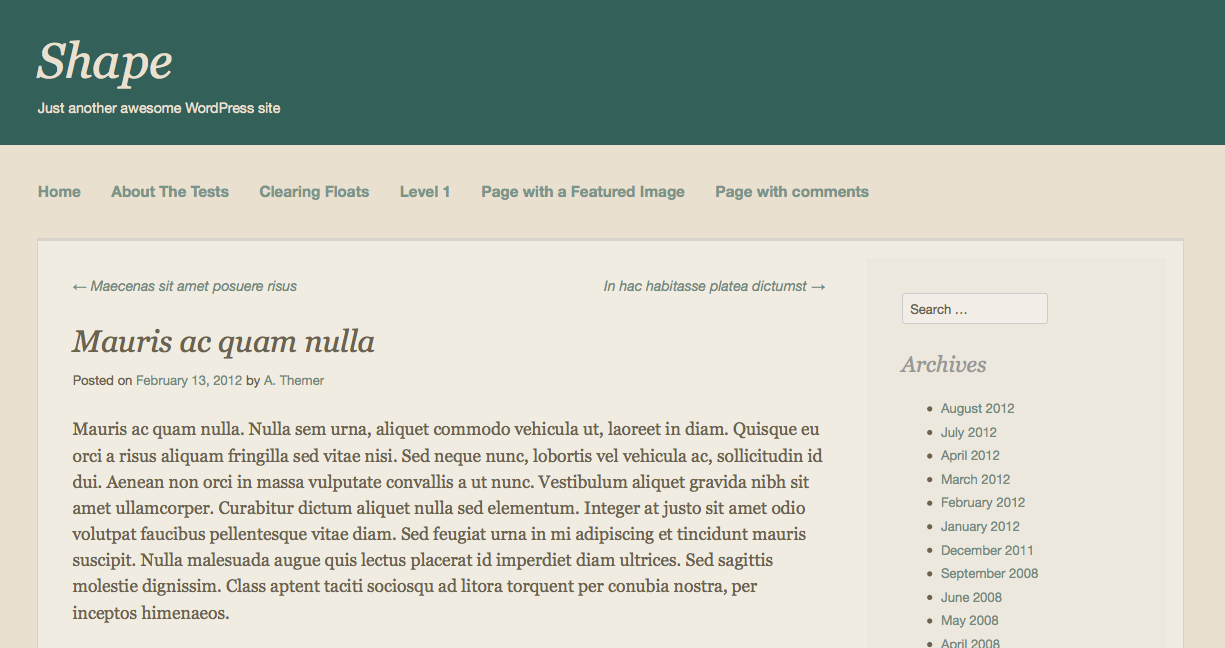
To apply the sample stylesheet to the theme you’ve just built, follow the instructions in the README file included with the download.
Learning Stylesheet
The learning stylesheet is for those who are feeling adventurous. It contains every major ID or class selector from the theme, empty and ready for you to fill in. Some of the selectors have basic styling applied to them to get you started, but most are empty. Comments are also included to help guide you along. Download the learning stylesheet here. To install it, rename it to “style.css” and then drag it into your theme’s root directory, replacing your current stylesheet.
How To Create a WordPress Theme
This post is part of the The ThemeShaper WordPress Theme Tutorial: 2nd Edition that will show you how to create a powerful WordPress Theme from scratch. Read it from the beginning and code yourself up something awesome.
- WordPress Theme Tutorial Introduction
- Developing Theme Sense
- Theme Development Tools
- Creating a Theme HTML Structure
- Template and Directory Structure
- Setting Up Your Theme Functions
- Secure Your WordPress Theme
- The Header Template
- The Index Template
- The Single Post, Post Attachment, & 404 Templates
- The Comments Template
- The Search Template & The Page Template
- The Archive Template
- The Sidebar Template & The Footer Template
- Reset-Rebuild Theme CSS & Define Your Layouts
- Custom Background & Custom Header
- Distributing Your WordPress Theme
 ThemeShaper
44 responses
[…] Home › Themes › How To Reset & Rebuild WordPress Theme CSS & Define Your Layouts […]
What can I say you guys are the coolest thanks for this series of tutorials
I guess one of the layouts missing is a full page one, will have to try that out and see what I can come up with. not sure if it might be as simple as dropping the call to the sidebar or not, let’s try it and see. that’s what I like about a series like this, generates all kinds of questions to be answered.
Al
gave the full width page a go, what you need to change:
1) create a fullwidth page template “full-width-page.php”, a copy of the page.php template without the call to sidebar.php
2) add a class of “fullwidth” to the #content div
3) in style.css, add a selector to set the margin-right to 0px on the #content div when in the full width page template e.g #content.fullwidth {margin-right: 0;}
Al
excellent CSS tutorial for wordpress. I love working with CSS, jQuery and HTML, and this tutorial will help me much in learning more. I’m visiting this blog for first time and found it very informative.
Waiting for the release of WordPress 3.5 and
Waiting for the next section of this tutorial…
so far, a 17 day series of articles has taken 23 days, good but so frustrating waiting for the next article when days are missed, now no article since Monday
Al
Mr. Ian and Ms Michelle, I’m sorry for my above comment.
Actually I’m so patient to read this tutorial line by line (as I did with the 1st edition of this tutorial) and to wait the final section.
I write this comment because now there 2 things I’m waiting for: the next final release of WordPress 3.5 and the the final section of this tutorial.
I’m sorry, my great teachers… I can’t find teachers better than you in this field at my country.
Thank you very much for the _s theme. I used your Thematic theme in the past and now am overwhelmed by the elegance and simplicity of the _s theme.
I tried the Shape theme, it looks great. However, after adding/uploading a header image via Appearance | Header option, cropping it for size and deselecting the display Header title and description text the Shape theme does not display a Header image at all. Just about 2 centimeters worth of the header background green color displays (no header image/text). Nav still displays fine.
Have you had issues with header images for the Shape theme? or could this be an issue with local WP install issue.
Hi Vjay! I’m unable to repeat this issue with the Shape theme. Can you try using the Custom Header code from the Custom Background & Custom Header lesson and see if it still occurs?
Ian,
when is this series of articles going to be finished off??
what is causing the delay??
Al
Hi Al! I apologize for the delay, the series will be completed in the next few days.
Where on Earth is our free content? Why haven’t you worked faster on the incredibly valuable, time-saving information you’re providing us at no charge? Don’t you care about your users????? <<— KIDDING. Thanks for such a kick ass series. Getting Evernoted for sure. Take as long as you need; I'll keep coming back. 🙂
I can’t believe people are giving the author a hard time to finish a FREE TUTORIAL on how to build a wordpress theme. People need to chill out and be grateful.
Great articles! Thank you for your wisdom! I am trying to build my own web site on WordPress(never worked on WP before) and when I so your articles I couldn’t believe it. As if you read my mind. This brake of yours from writing I used to experiment a bit, but I can’t wait for the new stuff to come out. 🙂
Thank’s again!
Me again! Can anyone help me! Please! As I said, I’m trying to build my own theme for WP, and I’m stuck. When I view my page I have blank space where Admin Toolbar needs to be. I checked my Profile settings and ” Show Toolbar when viewing site” is checked. Where did I go wrong?
P.S.
Thanks again for this tutorial 🙂
🙂 Got it Working! 🙂
FYI, something in this theme prevents the page template attribute from appears when editing pages…
The Shape Theme does not have page templates, so that is why the page template attribute does not appear.
How do you style the background of the navigation bar?
I’ve been able to set the background color of:
.site
.site-header
.site-footer
without any problems.
I want to set the background of the menu to #ffffff and have tried:
.site-navigation {
background: #fff;
}
.main-navigation {
background: #fff;
}
These are the last two items on my stylesheet but still the menu has the same background color as .site. Has anybody got any suggestions?
The “.main-navigation” class will apply only to the main navigation, while the “.site-navigation” class appears in other navigational elements in the theme (such as the previous/next posts links).
Can you try the following and see if it helps?
.main-navigation {

background: #fff;

width: 100%;

}
I’m making my first wp theme and, while there are still minor tweaks to do, so far so good.
Though I’ve been having issues with positioning the content and sidebars. I’ve been playing with it for hours, searching google and still having trouble. I’ve got it some what close to how I want it but now having issues with the text in the content.
Could someone have a look at it and see if they know where I’v gone wrong?
http://demo-sites.jonathantrinham.com/testing-ground/
OK so I thought I had it all solved. Had it all looking good on the testing site;
http://demo-sites.jonathantrinham.com/testing-ground
Then I tried to copy it over to my main website;
http://jonathantrinham.com/
And now the sidebar and content won’t line up again. Yet the same theme on the testing site looks fine.
This is starting to drive me crazy, what am I missing here?
Hi Jonny,
Were you able to figure this out? You have a different design on your test site vs your main site.
Amaziiiinngggg tutorial!
I should have found this weeks ago and saved myself from reading the wrong wrong tutorials. You guys are so awesome! Thank you very much for the walkthrough!~~
Hey, Im really enjoying this tutorial, it’s definitely helping me get my head around the way wordpress themes are set up. Im just curious: When i try to view my site in the browser I’m getting this issue:
Fatal error: Call to undefined function shape_content_nav() in C:\xampp\htdocs\wordpress\wp-content\themes\langdaleview\index.php on line 23
It looks like it cannot find the template-tags.php file (I assume), this is strange as I have the call to it in my functions.php file:
function shape_setup() {
/**
* Custom template tags for this theme.
*/
require( get_template_directory() . ‘/inc/template-tags.php’ );
Could you suggest any other reason this could be happening, as I’m stumped. I’m sure it is something obvious! Thanks again
Dave B
Hi Dave, glad you’re finding the tutorial useful. To troubleshoot that issue you might want to download the entire working theme here and compare it to your code to see what might be going on:
https://themeshaper.files.wordpress.com/2013/10/shape.zip
Good luck!
Hey, thanks for getting back to me. I solved this a few weeks back with the help of someone on reddit.com/r/wordpress . After weeks of going over every bit of code and being unable to find an issue my new best friend pointed out to me that i had named the functions.php file: “functons.php”. What an idiot! What a difference an ‘i’ can make. Its easy to miss the small things sometimes
Hi, thanks for the great tutorials.
Re. the responsive aspect of the layout – when I have tested the above CSS on tablet devices, the sidebar is shunted to the bottom of the screen. Is there a simple way of maintaining the content-sidebar layout responsively on mobile devices?
It would be extremely useful to know what basic CSS would be needed to handle this requirement.
Hi Fiona, here is a great guide to using media queries in CSS to target specific devices: http://css-tricks.com/snippets/css/media-queries-for-standard-devices/
That should point you in the right direction – good luck!
What about if I want to use Bootstrap? I think that all the .css shipped with _s is trouble because there are some functionalities that are wired up to the .css
If you want to use Bootstrap, you’re right, properly integrating the CSS from both projects is important. While we can’t recommend one particular project, there are many out there that have tackled using Underscores with Bootstrap; start there and use the best that suits your needs.
Hi there!
At first: thanks for the great tutorial!
I’ve got a little problem over here: My main navigation is not horizontal but vertical. It’s a normal unordered vertical list with a bullet symbol in front of every list item.
Do you have any suggestion how I can change it to a horizontal list?
For help styling horizontal lists, you might want to check out some list-menu tutorials, like this one:
http://designshack.net/articles/css/5-simple-and-practical-css-list-styles-you-can-copy-and-paste/
When using the normalise css mentioned above, my blog first flashes in a very large font-size en then returns to normal.
You might want to compare your site carefully to the final version and make sure you’re calling in all the CSS files in the right order. Download links are in the sidebar at top right, where it says “Download Tutorial Files.”
I have a problem here, all of the css styles above have no result in my theme, how do I take care of this?
It’s possible your path to the style.css file isn’t right – if you have the site uploaded somewhere, you could provide a link so I can have a look.
Great Tutorial. Loved it, loved it, loved it. Learned a lot about designing custom WP themes. Going to try and build one myself. Having one issue, though.
On Chrome (tested on Safari and FF, no problem) when you click a link to anything, it loads the page with larger font sizes (zoom issues?) than stated in the css file. I’ve used the code from this post, copy/pasting the Reset css, the Rebuild css, and the Structure (content-sidebar) css, and that’s it. When I open the inspector on Chrome, change the zoom, or pretty much anything else that has to do with resizing anything, the correct styles kick in. Any ideas? Reloading the page also works to correct the font-size.
Hi, I’m so glad you found the tutorial helpful! 🙂 Does the behavior in Chrome occur on other sites as well, or just with the theme you built? If so, could you check your Chrome settings to see if the problem might lie there? Otherwise, do you have a link to a test site where I could take a closer look? Thanks!
Using this tutorial, I successfully completed the building of my first theme from ‘scratch’ (though I don’t completely feel like using someone else’s templating equates to building from ‘scratch’; more thoughts on this later) over the course of a few casual hours and wanted to share some thoughts.
Firstly, thank you so very much for making this tutorial.
I’ve worked with WordPress since 2.5 and after all this time of working with Child themes, I finally decided that it was time for me to build my own theme from the bottom up.
Despite my ability to look at PHP and mostly ‘get’ what it’s trying to do, I’m not and never have been a particularly PHP-savvy person in terms of being able to write it myself.
Because of this, I have felt very discouraged – both on my own end and from the community attitude on a whole re: “DON’T TOUCH THE ACTUAL TEMPLATE! YOU MUST CREATE CHILD THEMES!” – from bothering with creating standalone or Parent themes in years past.
It’s true that I’m more of a front-end HTML and CSS sort of person, but I enjoy BUILDING sites as much as I like to make things look nice and for WordPress, that has come to mean either doing customization that goes beyond what would normally be suited for a Child theme or paying a premium for a premium theme that looks somewhat similar in structure but still needs to be modified.
As such, this tutorial was perfect for setting me on the right course for building my own first starter theme from the ground up and it was a very smooth experience.
Explanations made sense and I definitely had a few ah-ha moments – especially when I was reviewing the tutorial for the template-tags template and the functions template – and it made the learning process all the more rewarding.
I do have a question related to the tutorial, though, if someone could answer:
How much of the order in which everything is done in the functions and template-tags is ‘mandatory’ and how much of it is ‘flexible’?
For example, I know that the setup has to happen first and that initializing the widgets can come last or in the middle or pretty much wherever (as mentioned in the tutorial)… but what about everything else in the functions?
The ‘order of operations’ is rather obvious to me in the other template files, but in the functions and template-tags, I have a harder time determining if so-and-so needs to come before or after another function and if the order even matters in the first place for those functions.
On the note of things mattering or not, I would like to close my comment by sharing a last thought which is related to my earlier statement re: using someone else’s template and how I don’t completely feel like I was the one who ‘built’ it.
Though I have a better understanding of how things work and what things do what, precisely, and in some cases, why, I still wasn’t the one to write that code myself and if someone were to ask me, “Hey Aith, how did you do that?” I would have to say, “Well, honestly speaking, I kind of just copied down someone else’s code in terms of the basic templating. I understand pretty well what it does, but I didn’t write it myself,” and… I don’t know how to feel about that.
DID I actually build a barebones theme myself or not?
Am I ‘qualified’ to build a standalone theme now or am I still that ‘unqualified’ designer-only who STILL doesn’t know enough PHP to write out all the functions and STILL has to copy them?
… Or am I thinking too much?
Anyhow, TLDR (and sorry for the super long comment):
This was a wonderful tutorial and I am so glad that I found it. I built a theme off of it and the process has helped me to make better sense of how things work within WordPress.
Also, Toolbox is finally retired on my end, too. 🙂
Hi AITH! First of all, I’m so happy to hear that you found the tutorial useful and a smooth experience. I’m glad you had a chance to dive into some PHP
You have some great questions. As far as the “order” of things in the functions file, the order in which you place the functions in the file does not matter. If you’d like a function to execute at a specific point during WordPress core, then you would hook it to an action.
For example, as you might recall from the lesson, shape_setup() is hooked to after_setup_theme(). after_setup_theme() runs at an appropriate time to allow these theme-related functions to apply at the right moment.
When we registered our widgets, we also hooked those to an action, so they run at a certain point during WordPress core. But as far as the actual order in which the functions appear in the file, it does not matter.
template-tags.php is just a collection of functions that we can reuse whenever we want. I used a “symphony” metaphor in that lesson…so keeping with that metaphor, think of that file as a collection of songs. How you order them in the file depends on your preferences. It helps to be consistent and use comments to indicate to others and to your future self what each function does, so you’ll know your intentions when you come back to them.
Of course you built a barebones theme yourself! And yes, you are qualified to build a standalone theme! Congratulations! 🙂 Many of us copy and paste functions. It saves a lot of time and speeds up development time. In fact, if you use a starter theme such as Underscores (http://underscores.me) for building new themes, many of the essential functions will already be in place for you.
I think the main thing to remember when copying and pasting PHP is to always be aware of where that code came from…is it up to date, does it follow standards, what is it trying to do? Basically, all of the things mentioned in Developing Your Theme Sense lesson.
Good luck with your adventures in theme development!
Hi Michelle!
Thank you so much for taking the time to reply to my thoughts; I really appreciate it. 🙂
Since I last wrote, I have started working on some theme-specific customizations and have discovered – much to my surprise and delight – that even though I would be still hard-pressed to write out the functions on my own without help, my understanding of the functions has significantly improved (thanks to the tutorial and Codex).
I can find what I need (and where) much more quickly (and understand WHY I would be looking at what and where in the first place) and rearrange as necessary without messing things up and I can also make edits and changes as needed with more confidence than before.
Overall, I have gained an insight into a process that I had not yet fully understood and it is amazing how it has affected me in such a short amount of time.
Related to this, your answer regarding the ‘symphony’ of functions makes a lot of sense and since I first put together my theme and wrote my comment, I have experimented a bit with ‘composing’. I played around with rearranging some functions to better suit my preferences and I am pleased to report that everything worked out fine without issue!
I did, however, discover a minor issue related to W3C Validation (granted, W3C can be a bit out of date and I think the tutorial was published before the changes were made anyways) and the function-generated output of certain tags.
The tags in question are the `hgroup` and `pubdate` tags which apparently were axed in HTML5.
I personally exchanged `hgroup` for `#site-branding` because I literally wanted to group the information together in a logical manner in a way that `hgroup` did and after some research, I simply removed the relevant `pubdate` bits in my template-tags file.
Related to this, I was wondering how the ThemeShaper team is keeping up with all the ongoing changes to HTML5 and if there is any advice on helping theme developers do the same.
Also, is the Validator complaint about the footer re: `generator` and `designer` something we can just ignore and leave be (and will Validator ever stop complaining about it)?
Thank you for your time! 🙂
… Whooops. I can tell that I’ve been on message forums for too long; I enclosed my HTML tags in backticks rather than using
insert code here. Sorry!