
With the templates and CSS in place, let’s round off our theme building by adding a way for visitors to add a personal touch with their own Custom Backgrounds and Custom Headers.
I recommend adding support for these features after you’ve completed the CSS for your theme. It’s faster this way, because you can make the preview of the Custom Header and match your theme’s design. Plus, it’s easier to test the implementation of both backgrounds and headers when your design is complete. Think of them as the final flourish for your theme!
Please Note: The examples in this lesson are based on the design of the Shape Sample Stylesheet from the CSS lesson. If you want your header styles to look like those in the screenshots in this lesson, you’ll need to replace the styles in your current style.css with those from download.
Custom Background
The WordPress Custom Background feature lets users set their own background color or image. To enable it, we’ll draw on our old friend, add_theme_support(). Open functions.php, and add the following code at the bottom.
/**
 * Setup the WordPress core custom background feature.
 *
 * Use add_theme_support to register support for WordPress 3.4+
 * as well as provide backward compatibility for previous versions.
 * Use feature detection of wp_get_theme() which was introduced
 * in WordPress 3.4.
 *
 * Hooks into the after_setup_theme action.
 *
 */
function shape_register_custom_background() {
	$args = array(
		'default-color' => 'e9e0d1',
	);

	$args = apply_filters( 'shape_custom_background_args', $args );

	if ( function_exists( 'wp_get_theme' ) ) {
		add_theme_support( 'custom-background', $args );
	} else {
		define( 'BACKGROUND_COLOR', $args['default-color'] );
		define( 'BACKGROUND_IMAGE', $args['default-image'] );
		add_custom_background();
	}
}
add_action( 'after_setup_theme', 'shape_register_custom_background' );

/**
We’ve defined a function, shape_register_custom_background(), that:
- Creates an array, $args, which stores the default background color for our theme (line 13). This color is #e9e0d1 in the Shape Sample Style (feel free to define your own color to match your design). If you wanted to, you could pass other values in this array.
- Adds the $args array to a filter (line 17)
- If the wp_get_theme() function exists (WordPress version 3.4 or later), we use add_theme_support() to enable Custom Backgrounds, passing $args as the parameter with all of our Custom Background options (line 20).
- If the wp_get_theme() function does not exist (in other words, if we’re using a version of WordPress prior to 3.4), enable Custom Backgrounds with the method used in WordPress 3.3 and earlier (lines 22-24).
- Close the function, and hook it to the after_setup_theme() action (lines 25-27).
That’s all you have to do to get Custom Backgrounds working! WordPress takes care of the rest. Visit Appearance → Background to see it in action.
Custom Headers
Custom Headers have been around for a long time (since version 2.1 to be exact). When you add Custom Header support to your theme, you give your users the ability to upload a “title” image for their site. In addition, users can also choose to change the header text color or hide the header text altogether.
As of WordPress 3.4, you can add Custom Header support using the add_theme_support() function. There are quite a few options you can configure for Custom Headers, so you can implement it in a manner that works best for your theme.
In this tutorial, our implementation of Custom Headers will:
- Be based on the visual design of the Shape Sample Style
- Allow users to upload a header image. The header image’s width will be limited to the width of the site’s main container div, but it can have an unlimited height.
- Allow users to change the color of the header text.
- Allow users to hide the header text.
custom-header.php
Traditionally, code related to Custom Headers has lived inside functions.php. In order to keep our functions.php clean, we’re going to place all of our Custom Header code inside a custom-header.php file, and call it from within functions.php.
If you don’t already have one, navigate to your inc folder and create custom-header.php.
Go ahead and add this code to custom-header.php. This is most of the code you’ll need to make the Custom Header work. We’ll walk through it in a bit.
<?php
/**
 * Sample implementation of the Custom Header feature
 * http://codex.wordpress.org/Custom_Headers
 *
 * You can add an optional custom header image to header.php like so ...

	<?php $header_image = get_header_image();
	if ( ! empty( $header_image ) ) { ?>
		<a href="<?php echo esc_url( home_url( '/' ) ); ?>" title="<?php echo esc_attr( get_bloginfo( 'name', 'display' ) ); ?>" rel="home">
			<img src="<?php header_image(); ?>" width="<?php echo get_custom_header()->width; ?>" height="<?php echo get_custom_header()->height; ?>" alt="" />
		</a>
	<?php } // if ( ! empty( $header_image ) ) ?>

 *
 * @package Shape
 * @since Shape 1.0
 */

/**
 * Setup the WordPress core custom header feature.
 *
 * Use add_theme_support to register support for WordPress 3.4+
 * as well as provide backward compatibility for previous versions.
 * Use feature detection of wp_get_theme() which was introduced
 * in WordPress 3.4.
 *
 * @uses shape_header_style()
 * @uses shape_admin_header_style()
 * @uses shape_admin_header_image()
 *
 * @package Shape
 */
function shape_custom_header_setup() {
	$args = array(
		'default-image'          => '',
		'default-text-color'     => 'e9e0e1',
		'width'                  => 1050,
		'height'                 => 250,
		'flex-height'            => true,
		'wp-head-callback'       => 'shape_header_style',
		'admin-head-callback'    => 'shape_admin_header_style',
		'admin-preview-callback' => 'shape_admin_header_image',
	);

	$args = apply_filters( 'shape_custom_header_args', $args );

	if ( function_exists( 'wp_get_theme' ) ) {
		add_theme_support( 'custom-header', $args );
	} else {
		// Compat: Versions of WordPress prior to 3.4.
		define( 'HEADER_TEXTCOLOR',    $args['default-text-color'] );
		define( 'HEADER_IMAGE',        $args['default-image'] );
		define( 'HEADER_IMAGE_WIDTH',  $args['width'] );
		define( 'HEADER_IMAGE_HEIGHT', $args['height'] );
		add_custom_image_header( $args['wp-head-callback'], $args['admin-head-callback'], $args['admin-preview-callback'] );
	}
}
add_action( 'after_setup_theme', 'shape_custom_header_setup' );

/**
 * Shiv for get_custom_header().
 *
 * get_custom_header() was introduced to WordPress
 * in version 3.4. To provide backward compatibility
 * with previous versions, we will define our own version
 * of this function.
 *
 * @todo Remove this function when WordPress 3.6 is released.
 * @return stdClass All properties represent attributes of the curent header image.
 *
 * @package Shape
 * @since Shape 1.1
 */

if ( ! function_exists( 'get_custom_header' ) ) {
	function get_custom_header() {
		return (object) array(
			'url'           => get_header_image(),
			'thumbnail_url' => get_header_image(),
			'width'         => HEADER_IMAGE_WIDTH,
			'height'        => HEADER_IMAGE_HEIGHT,
		);
	}
}

if ( ! function_exists( 'shape_header_style' ) ) :
/**
 * Styles the header image and text displayed on the blog
 *
 * @see shape_custom_header_setup().
 *
 * @since Shape 1.0
 */
function shape_header_style() {

	// If no custom options for text are set, let's bail
	// get_header_textcolor() options: HEADER_TEXTCOLOR is default, hide text (returns 'blank') or any hex value
	if ( HEADER_TEXTCOLOR == get_header_textcolor() && '' == get_header_image() )
		return;
	// If we get this far, we have custom styles. Let's do this.
	?>
	<style type="text/css">
	<?php
		// Do we have a custom header image?
		if ( '' != get_header_image() ) :
	?>
		.site-header img {
			display: block;
			margin: 1.5em auto 0;
		}
	<?php endif;

		// Has the text been hidden?
		if ( 'blank' == get_header_textcolor() ) :
	?>
		.site-title,
		.site-description {
			position: absolute !important;
			clip: rect(1px 1px 1px 1px); /* IE6, IE7 */
			clip: rect(1px, 1px, 1px, 1px);
		}
		.site-header hgroup {
			background: none;
			padding: 0;
		}
	<?php
		// If the user has set a custom color for the text use that
		else :
	?>
		.site-title a,
		.site-description {
			color: #<?php echo get_header_textcolor(); ?> !important;
		}
	<?php endif; ?>
	</style>
	<?php
}
endif; // shape_header_style

if ( ! function_exists( 'shape_admin_header_style' ) ) :
/**
 * Styles the header image displayed on the Appearance > Header admin panel.
 *
 * @see shape_custom_header_setup().
 *
 * @since Shape 1.0
 */
function shape_admin_header_style() {
?>
	<style type="text/css">
	.appearance_page_custom-header #headimg { /* This is the container for the Custom Header preview. */
		background: #33605a;
		border: none;
		min-height: 0 !important
	}
	#headimg h1 { /* This is the site title displayed in the preview */
		font-size: 45px;
		font-family: Georgia, 'Times New Roman', serif;
		font-style: italic;
		font-weight: normal;
		padding: 0.8em 0.5em 0;
	}
	#desc { /* This is the site description (tagline) displayed in the preview */
		padding: 0 2em 2em;
	}
	#headimg h1 a,
	#desc {
		color: #e9e0d1;
		text-decoration: none;
	}
	</style>
<?php
}
endif; // shape_admin_header_style

if ( ! function_exists( 'shape_admin_header_image' ) ) :
/**
 * Custom header image markup displayed on the Appearance > Header admin panel.
 *
 * @see shape_custom_header_setup().
 *
 * @since Shape 1.0
 */
function shape_admin_header_image() { ?>
	<div id="headimg">
		<?php
		if ( 'blank' == get_header_textcolor() || '' == get_header_textcolor() )
			$style = ' style="display:none;"';
		else
			$style = ' style="color:#' . get_header_textcolor() . ';"';
		?>
		<h1><a id="name"<?php echo $style; ?> onclick="return false;" href="<?php echo esc_url( home_url( '/' ) ); ?>"><?php bloginfo( 'name' ); ?></a></h1>
		<div id="desc"<?php echo $style; ?>><?php bloginfo( 'description' ); ?></div>
		<?php $header_image = get_header_image();
		if ( ! empty( $header_image ) ) : ?>
			<img src="<?php echo esc_url( $header_image ); ?>" alt="" />
		<?php endif; ?>
	</div>
<?php }
endif; // shape_admin_header_image
With our Custom Header code in place, we now need to tell WordPress to load our Custom Header file. At the bottom of functions.php, add the following.
/**
 * Implement the Custom Header feature
 */
require( get_template_directory() . '/inc/custom-header.php' );
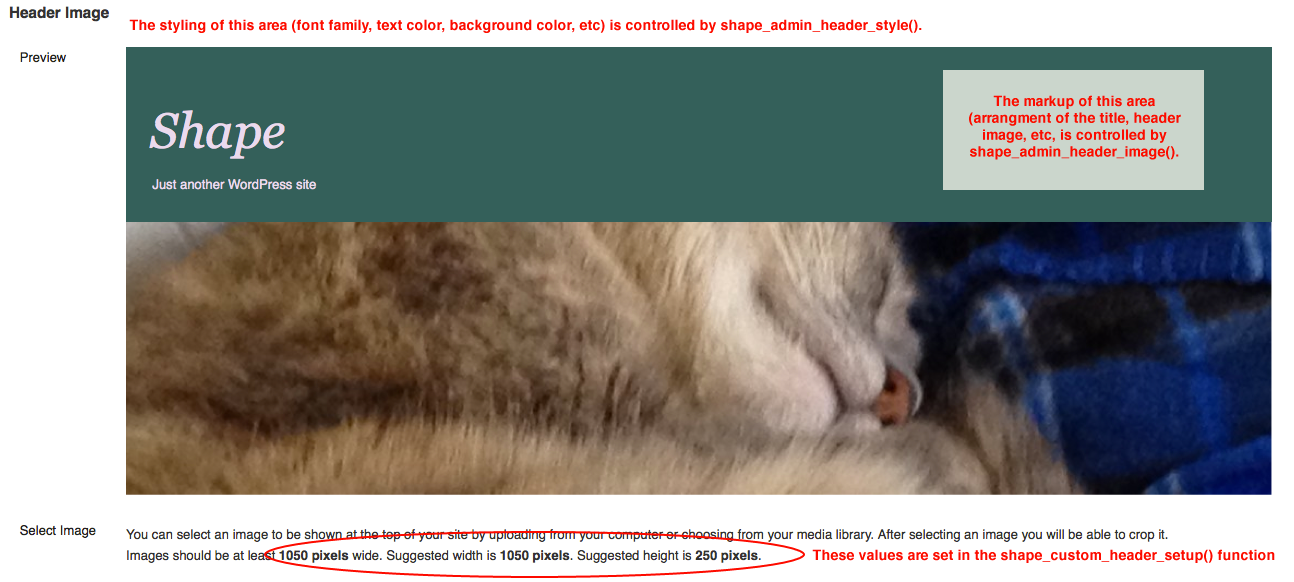
Visit the Dashboard and check out the Appearance menu. You should now have a “Header” option. If you’re using the Shape Sample Style, you should see the following:

Let’s walk through the code in inc/custom-header.php, function by function.
<?php
/**
 * Sample implementation of the Custom Header feature
 * http://codex.wordpress.org/Custom_Headers
 *
 * You can add an optional custom header image to header.php like so ...

	<?php $header_image = get_header_image();
	if ( ! empty( $header_image ) ) { ?>
		<a href="<?php echo esc_url( home_url( '/' ) ); ?>" title="<?php echo esc_attr( get_bloginfo( 'name', 'display' ) ); ?>" rel="home">
			<img src="<?php header_image(); ?>" width="<?php echo get_custom_header()->width; ?>" height="<?php echo get_custom_header()->height; ?>" alt="" />
		</a>
	<?php } // if ( ! empty( $header_image ) ) ?>

 *
 * @package Shape
 * @since Shape 1.0
 */
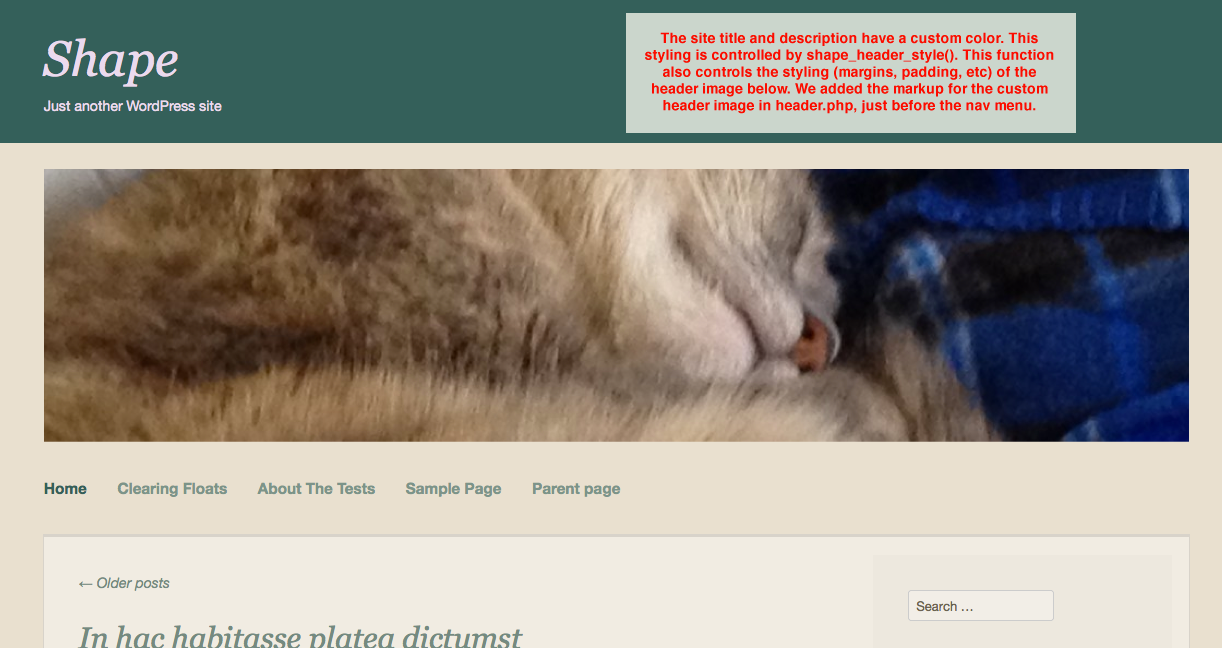
Here’s the usual documentation information. It also tells you how you can add Custom Header images to your header.php file, to make the header image show up. Technically, you could add this code anywhere you want to show the image, but header.php is the logical spot for it. Let’s add it right now. Open header.php and paste the following, just before the opening <nav> tag.
<?php $header_image = get_header_image();
		if ( ! empty( $header_image ) ) { ?>
			<a href="<?php echo esc_url( home_url( '/' ) ); ?>" title="<?php echo esc_attr( get_bloginfo( 'name', 'display' ) ); ?>" rel="home">
				<img src="<?php header_image(); ?>" width="<?php echo get_custom_header()->width; ?>" height="<?php echo get_custom_header()->height; ?>" alt="" />
			</a>
<?php } // if ( ! empty( $header_image ) )
?>
Save header.php, and return to custom-header.php. Let’s continue walking through the code.
/**
 * Setup the WordPress core custom header feature.
 *
 * Use add_theme_support to register support for WordPress 3.4+
 * as well as provide backward compatibility for previous versions.
 * Use feature detection of wp_get_theme() which was introduced
 * in WordPress 3.4.
 *
 * @uses shape_header_style()
 * @uses shape_admin_header_style()
 * @uses shape_admin_header_image()
 *
 * @package Shape
 */
function shape_custom_header_setup() {
	$args = array(
		'default-image'          => '',
		'default-text-color'     => 'e9e0e1',
		'width'                  => 1050,
		'height'                 => 250,
		'flex-height'            => true,
		'wp-head-callback'       => 'shape_header_style',
		'admin-head-callback'    => 'shape_admin_header_style',
		'admin-preview-callback' => 'shape_admin_header_image',
	);

	$args = apply_filters( 'shape_custom_header_args', $args );

	if ( function_exists( 'wp_get_theme' ) ) {
		add_theme_support( 'custom-header', $args );
	} else {
		// Compat: Versions of WordPress prior to 3.4.
		define( 'HEADER_TEXTCOLOR',    $args['default-text-color'] );
		define( 'HEADER_IMAGE',        $args['default-image'] );
		define( 'HEADER_IMAGE_WIDTH',  $args['width'] );
		define( 'HEADER_IMAGE_HEIGHT', $args['height'] );
		add_custom_image_header( $args['wp-head-callback'], $args['admin-head-callback'], $args['admin-preview-callback'] );
	}
}
add_action( 'after_setup_theme', 'shape_custom_header_setup' );

/**
 * Shiv for get_custom_header().
 *
 * get_custom_header() was introduced to WordPress
 * in version 3.4. To provide backward compatibility
 * with previous versions, we will define our own version
 * of this function.
 *
 * @return stdClass All properties represent attributes of the curent header image.
 *
 * @package Shape
 * @since Shape 1.1
 */

if ( ! function_exists( 'get_custom_header' ) ) {
	function get_custom_header() {
		return (object) array(
			'url'           => get_header_image(),
			'thumbnail_url' => get_header_image(),
			'width'         => HEADER_IMAGE_WIDTH,
			'height'        => HEADER_IMAGE_HEIGHT,
		);
	}
}
Here, we’re using add_theme_support() to add the Custom Header feature to the theme. Just like we did for backgrounds, we’re also adding background compatibility for WordPress versions prior to 3.4.
Let’s look at the $args array, starting on line 16 in the code block above, and running through line 25. Here is where we’re defining the parameters for our Custom Header. These values will change based on your theme.
default-image' => '',– If your theme has a default header image, you’d specify the path to that image here. It would look something like this:'default-image' => get_template_directory_uri() . '/images/header.jpg',. The Shape Sample Style doesn’t have a default header image, so we’re leaving it blank.'default-text-color' => 'e9e0e1',– This is the default text color of your site title. In the case of the Shape Sample Style, it’s #e9e0e1.'width' => 1050,and'height' => 250,– Specify the width and height, in pixels that you want the header image to be. Users will have the option to crop images that are larger than these dimensions. Usually, the width and height that you define here should fit in the area where you plan to place the header image on your theme. We’re using 1050px as the width here because that is the maximum width of the container in the Shape Sample Style.'flex-height' => true,– This allows the height of the header image to be flexible. We’e already specified that the header image height is 250px. Since we’re allowing flexible heights, That 250px becomes a mere “recommended” height. We’re still restricting the width to 1050px, but if you wanted a flexible width, you’d simply add:'flex-width' => true,'wp-head-callback' => 'shape_header_style',,'admin-head-callback' => 'shape_admin_header_style',, and'admin-preview-callback' => 'shape_admin_header_image',– These functions are known as callback functions. We will call on them to: 1) control the appearance of the Custom Header when viewed in the theme; 2) control the preview of the Custom Header that you see when you go to Dashboard → Header; and 3) control the markup of the Custom Header image on the Custom Header preview at Dashboard → Header, respectively.
There are more parameters that you can add to this $args array. For a list, see the WordPress Codex.
The Shiv for get_custom_header() (starting on line 42 in the code block above) is present for background compatibility with earlier versions of WordPress. In a nutshell, it takes the values that you’ve specified in the $args array and assigns them to the “old” method of adding Custom Headers, so that previous versions of WordPress can understand. If you don’t wish to provide this background compatibility, you can remove it. If you plan to distribute your theme, however, it might be a good idea to keep it around.
Moving right along. Next, we have:
if ( ! function_exists( 'shape_header_style' ) ) :
/**
 * Styles the header image and text displayed on the blog
 *
 * @see shape_custom_header_setup().
 *
 * @since Shape 1.0
 */
function shape_header_style() {

	// If no custom options for text are set, let's bail
	// get_header_textcolor() options: HEADER_TEXTCOLOR is default, hide text (returns 'blank') or any hex value
	if ( HEADER_TEXTCOLOR == get_header_textcolor() && '' == get_header_image() )
		return;
	// If we get this far, we have custom styles. Let's do this.
	?>
	<style type="text/css">
	<?php
		// Do we have a custom header image?
		if ( '' != get_header_image() ) :
	?>
		.site-header img {
			display: block;
			margin: 1.5em auto 0;
		}
	<?php endif;

		// Has the text been hidden?
		if ( 'blank' == get_header_textcolor() ) :
	?>
		.site-title,
		.site-description {
			position: absolute !important;
			clip: rect(1px 1px 1px 1px); /* IE6, IE7 */
			clip: rect(1px, 1px, 1px, 1px);
		}
		.site-header hgroup {
			background: none;
			padding: 0;
		}
	<?php
		// If the user has set a custom color for the text use that
		else :
	?>
		.site-title a,
		.site-description {
			color: #<?php echo get_header_textcolor(); ?> !important;
		}
	<?php endif; ?>
	</style>
	<?php
}
endif; // shape_header_style
This is the callback function that controls how the Custom Header will appear on your theme. The comments in the code should help explain what it’s doing, but in summary, if the user has uploaded a header image or set a custom header text color, this function adds a block of CSS inside your <head> tag. This block contains the presentation rules for the header image or text.
We’ve already added the header image markup to header.php. On line 22 above, we can style the image if necessary. Just make sure .site-header img is the correct selector name for your theme!
We want to hide the header text if the user has opted to hide the text (lines 28-40 above).
Finally, we want the site title and description to display the user’s custom header text color (lines 42-48 above). You don’t have to apply the header text color to the site description, that part is up to you.
Moving along, we next have this:
if ( ! function_exists( 'shape_admin_header_style' ) ) :
/**
 * Styles the header image displayed on the Appearance > Header admin panel.
 *
 * @see shape_custom_header_setup().
 *
 * @since Shape 1.0
 */
function shape_admin_header_style() {
?>
	<style type="text/css">
	.appearance_page_custom-header #headimg { /* This is the container for the Custom Header preview. Notice how the min-height value on this element matches the "height" value we specified earlier in the Custom Header $args array. */
		background: #33605a;
		border: none;
	}
	#headimg h1 { /* This is the site title displayed in the preview */
		font-size: 45px;
		font-family: Georgia, 'Times New Roman', serif;
		font-style: italic;
		font-weight: normal;
		padding: 0.8em 0.5em 0;
	}
	#desc { /* This is the site description (tagline) displayed in the preview */
		padding: 0 2em 2em;
	}
	#headimg h1 a,
	#desc {
		color: #e9e0d1;
		text-decoration: none;
	}
	</style>
<?php
}
endif; // shape_admin_header_style
This callback function controls the styling of the Custom Header in the preview you see at Dashboard → Appearance → Header. The goal is to make this match the front end of your theme as much as possible. This means you should style these elements with the same fonts, colors and backgrounds you used in your theme’s main stylesheet. You might need to make adjustments to these styles, so keep chipping away until you get it just right.
Finally, we have a function that controls the markup for the Custom Header image in the Custom Header preview. Feel free to modify it to fit your theme.
if ( ! function_exists( 'shape_admin_header_image' ) ) :
/**
 * Custom header image markup displayed on the Appearance > Header admin panel.
 *
 * @see shape_custom_header_setup().
 *
 * @since Shape 1.0
 */
function shape_admin_header_image() { ?>
	<div id="headimg">
		<?php
		if ( 'blank' == get_header_textcolor() || '' == get_header_textcolor() )
			$style = ' style="display:none;"';
		else
			$style = ' style="color:#' . get_header_textcolor() . ';"';
		?>
		<h1><a id="name"<?php echo $style; ?> onclick="return false;" href="<?php echo esc_url( home_url( '/' ) ); ?>"><?php bloginfo( 'name' ); ?></a></h1>
		<div id="desc"<?php echo $style; ?>><?php bloginfo( 'description' ); ?></div>
	</div>
	<?php $header_image = get_header_image();
	if ( ! empty( $header_image ) ) : ?>
		<img src="<?php echo esc_url( $header_image ); ?>" alt="" />
	<?php endif; ?>
<?php }
endif; // shape_admin_header_image
And there you have it. A working Custom Header implementation! The best way to learn how these functions work is to make small adjustments to each one, and then reload your Custom Header Dashboard page to see what changes. Trial and error is one of the best ways to learn! The following annotated screenshots will help you to see which functions change which parts of the header.
How To Create a WordPress Theme
This post is part of the The ThemeShaper WordPress Theme Tutorial: 2nd Edition that will show you how to create a powerful WordPress Theme from scratch. Read it from the beginning and code yourself up something awesome.
- WordPress Theme Tutorial Introduction
- Developing Theme Sense
- Theme Development Tools
- Creating a Theme HTML Structure
- Template and Directory Structure
- Setting Up Your Theme Functions
- Secure Your WordPress Theme
- The Header Template
- The Index Template
- The Single Post, Post Attachment, & 404 Templates
- The Comments Template
- The Search Template & The Page Template
- The Archive Template
- The Sidebar Template & The Footer Template
- Reset-Rebuild Theme CSS & Define Your Layouts
- Custom Background & Custom Header
- Distributing Your WordPress Theme
 ThemeShaper
29 responses
I want to put
like in TwentyTen and TwentyEleven, is it correct to put this code after line 65 (after The Shiv for get_custom_header())? Or before it?I mean this code register_default_headers
[…] Home › Themes › Custom Background & Custom Header […]
when you specify a new custom background color from Appearance >> Background, what exactly are you changing to make this change take effect? are you adding a class to something, are you changing the CSS, or what?? how does the background color change interface with your theme code? that is never explained, even in the Codex.
Al
found the answer to my question, WordPress generates inline CSS code in the head that specifies a class for the body with the new background color specified. I guess the reason I didn’t see it before was because the color was set to the default color already.
Al
what has happened to the link to the first article?? from Oct. 22
Al
Sorry, Al. That weird redirect error has been fixed now and you should be able to access the content.
[…] Custom Background & Custom Header – With the templates and CSS in place, let’s round off our theme building by adding a way for visitors to add a personal touch with their own Custom Backgrounds and Custom Headers. […]
Thanks for sharing!
Very useful!
How about custom background image/color on a specific page?
The costum background works just fine for me, but after i added the costum-header code i get this error:
Warning: require(/var/www/test/wp-content/themes/mr-classy/inc/custom-header.php): failed to open stream: No such file or directory in /var/www/test/wp-content/themes/mr-classy/functions.php on line 147 Fatal error: require(): Failed opening required '/var/www/test/wp-content/themes/mr-classy/inc/custom-header.php' (include_path='.:/usr/share/php:/usr/share/pear') in /var/www/test/wp-content/themes/mr-classy/functions.php on line 147
Can somebody please help me???
Were you able to get this fixed? It looks like your custom-header.php file is missing. Did you check functions.php, line 147, to make sure that the path to that file is correct? If it is, can you check your inc folder and make sure “custom-header.php” exists inside that folder?
This tutorial is very helpful. Thanks. 🙂
I have one thing to ask though. How do I add a custom Slider insted of the header image??
Thank You.
Hi there. There are plenty of slider plugins in the WordPress.org Plugins Directory. When you find one that you like (and that is up to date with the current WordPress version), follow the plugin author’s instructions for adding it to your theme.
Hi, thanks for the tutorial! I have a question that maybe you could me with. I’m using a theme called Fine and it has a really nice header option. The thing is that I want to have changing headers in inner pages. So I downloaded a plugin that supports this function. The problem is that this plugin, like many others I tried says that the theme I use doesn’t support Custom Headers so the plugin won’t work. Now I’m trying to understand where to insert the code line, and it should exactly be formed, in order to turn this theme into Custom Headers supported. Any tip on where exactly in the functions.php such a line would go?
Thanks!
A.
Hi there, glad you enjoyed the tutorial. Your best bet for a theme-specific question like this is to post in Fine’s own support forum, where the developer can more easily see it and chime in:
http://wordpress.org/support/theme/fine
Good luck!
I’ll be using this custom header feature to display large banners of sponsors or featured content but I need to be able to change the link URL from the admin panel without having to manually edit header.php every time. I’d like to be able to enter a custom URL in the admin screen for the chosen header image to link to. Does anyone know who I can achieve this?
Hi David. Custom Headers may not be the best solution for you, as they’re not meant to change often, nor have individual links per image, as you’ve noticed. Consider looking into Featured Content, which you can find in the Jetpack plugin. The default theme Twenty Fourteen also has an implementation you can check out. Good luck!
Is shape_admin_header_style called only when the preview in the dashboard is rendered, or is it also called to render the header for the actual website? I ask because that’s the only place where I see that “background: #33605a;” is used. The header background color is set to that color (dark green) in the admin preview, but it’s not set on the front-end. I’m wondering if something changed between when this tutorial was written and now that changed the header-rendering behavior or am I missing something.
FYI, the text is also styled differently in the admin preview than in the front-end. I downloaded _s and see that the styles for #headimg h1, and #desc are empty, but that sort of defeats the intent of this section. What would I do to have the header look like it does in the picture?
Hi Carole! Sorry for the confusion. As mentioned at the beginning of this lesson, the styles used for the header in this lesson are based on the Shape sample stylesheet, which you can download here. So, if you replace your current style.css with the sample styles in the download, your header will look like the one in the screenshots for this lesson.
I’ll edit this article to make that part clearer! Let us know if you have any other questions.
pan -> plan @ “If you pan to distribute your theme, however, it might be a good idea to keep it around.”
Thanks for catching that typo, I’ve made the fix.https://themeshaper.wordpress.com/wp-admin/edit-comments.php?comment_status=moderated#comments-form
Thank you so much for this well written tutorial on how to make your own theme. I haven’t been using WordPress since 2007 and so much have happened since then. Coming back in 2014 was like going through a mace, but this tutorial kept me on a steady track from beginning to end. I really enjoyed going through the easy step-by-step parts. Thanks again!
Glad you found the tutorial helpful, thanks for letting us know!
Are there security concerns around letting users upload files for things like a custom header image? Is it posible for WP to test to see that a .jpg file really is a JPEG format image? I also worry about a user using the upload feature to hide warez or pr0n on my site, and whether that oens my site to legal problems. I suppose the first answer is that if that is my concern, don’t implement custom header images!
David – the folks to whom you grant administrative access on your site – who can add and remove users, upload custom headers, etc. – should definitely be people you trust!
Awesome tutorial, but I have a question
I see this in the body tag… I know is an error but can’t figure out how to solve it.
I have checked the files plugin.php and post-template.php but not sure what is wrong.
The page displays correctly. However the body has a margin of 8 pixels around, making the site looks like if it has a white border.
Here is what’s in the body opening tag
I’d appreciate any help.
Thanks.
Here is what I get in plain text
body warning:=”” call_user_func_array=”” expects=”” parameter=”” 1=”” to=”” be=”” a=”” valid=”” callback,=”” function=”” ‘shape_body_classes’=”” not=”” found=”” or=”” invalid=”” name=”” in=”” wp-includes pluginphp=”” on=”” line=”” 199=”” join:=”” arguments=”” passed=”” wp-includes post-templatephp=”” 394=”” class=” customize-support”