
In this post you’ll learn all the basics of WordPress Child Themes: WordPress Child Theme file structure, how to make any WordPress Theme a blank framework, how to import Parent Theme CSS styles, how to override Parent Theme styles, and how to override Parent Theme Template files. You’ll also learn that all of this is incredibly easy and within your grasp and that it might just change how you think about WordPress and Theme development.
Child Theme File Structure
WordPress Child Themes are located in /wp-content/themes/ like any other WordPress Theme. They’re activated from the WordPress admin like any other theme. They’ll always have a style.css file and may often include a functions.php file. They can contain images folders, script folders and include folders. Really, they’re just like any other WordPress theme.
Except they don’t need theme files. None at all. Zero. You don’t need to understand PHP in the slightest to create a WordPress Child theme.
The Comment Section In The Child Theme Stylesheet
The key to understanding how WordPress Child Themes work lies in one single line of a basic WordPress theme style.css file.
Here’s an example style sheet header from the WordPress Codex.
/*
Theme Name: Rose
Theme URI: the-theme's-homepage
Description: a-brief-description
Author: your-name
Author URI: your-URI
Template: use-this-to-define-a-parent-theme--optional
Version: a-number--optional
.
General comments/License Statement if any.
.
*/
We’ll be concerning ourselves with 1 particular line from the style sheet header.
Template: use-this-to-define-a-parent-theme--optional
According to the WordPress Codex
The simplest Theme includes only a style.css file, plus images, if any. To create such a Theme, you must specify a set of templates to inherit for use with the Theme by editing the Template: line in the style.css header comments.
What does this mean? We simply have to replace use-this-to-define-a-parent-theme--optional with the directory name of another installed theme—now called the Parent Theme—and we’re ready to begin.
A Framework Ready For Your CSS
Let’s make a WordPress Child Theme for one of the featured themes on the WordPress Theme directory, Fusion. We’ll call our new Child Theme, Fission. But first, a warning: this will be really easy.
We need to make an appropriately named directory in /wp-content/themes/ for our new Child Theme. That gives us /wp-content/themes/fission/.
In that /fission/ directory create a new file called style.css. Open style.css up in your favorite text editor.
Copy the following 5-line style sheet header into style.css and save the file. Pay close attention to line 4.
/*
Theme Name: Fission
Description: A Child Theme of Fusion
Template: fusion
*/
You just made a WordPress Child Theme for Fusion. Activate Fission from the Themes section of your WordPress admin. If everything went right … it should probably look wrong. That is, it should look like a brand new, valid HTML document in your browser, without any styling.

It might not look like much but if we look at the actual HTML skeleton of the the theme in Firebug we’re reminded that a lot of CSS design is simply a matter of manipulating containing divs and block level elements.
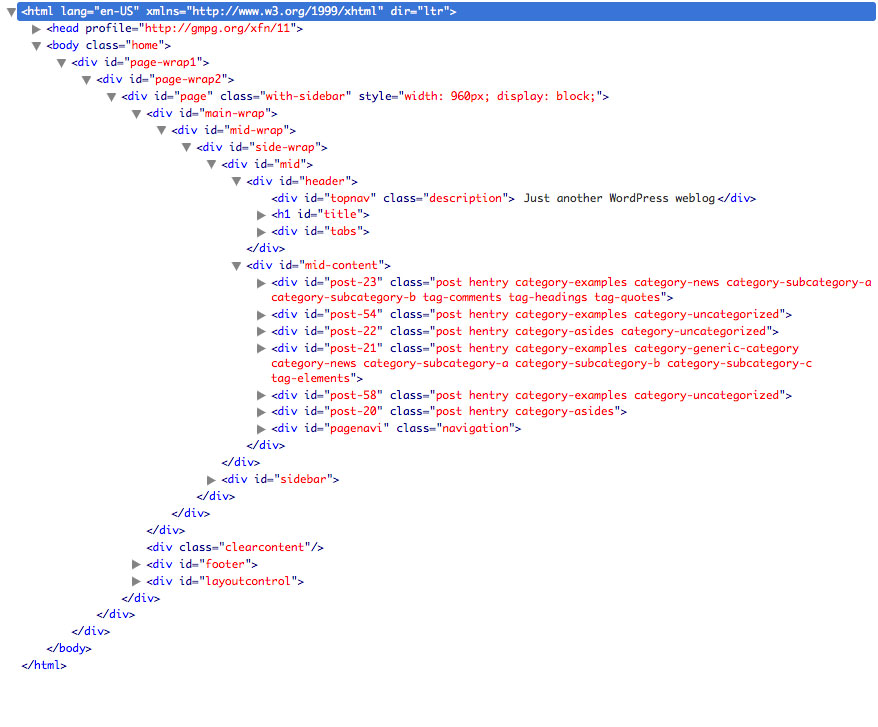
Here’s what this all means: you’re now ready to use the HTML output by this Parent Theme—a theme that has 19 PHP template files—as a framework, or canvas, for your design.
If you’re not a Theme developer you’ve just made yourself a fully functional blank WordPress Theme to start working with. You don’t have to know PHP. Just CSS and HTML. If you are a Theme developer, you can see what we did there. You can now easily reuse the same code base again and again, making room for easy updates to the code by untangling the presentation from the core of the theme as far as it will go.
Importing Parent Theme Styles
Of course, we’ll need to use CSS to make it look less wrong. For demonstration purposes, and for people new to making changes to a Parent Theme in this manner, we’re going to import the styles from the Parent Theme by adding only 1 line to our Child Theme style.css.
/*
Theme Name: Fission
Description: A Child Theme of Fusion
Template: fusion
*/
@import url(../fusion/style.css);
It should look … exactly the same as the Parent Theme, Fusion. This is not a mistake. This is revolutionary. What you’ve just created is a safe space to make changes to the Parent Theme without touching any of the original theme files.
Overriding Parent Theme Styles
Alright, now let’s say you want to make some simple changes to your Parent Theme. What do you do? Using something like Firebug you can find out where the offending styles are in the Parent Theme CSS.

Then just copy and paste the code into your Child Theme CSS where you can edit it safely (making sure to delete the reference to the filename that Firebug produces: “style.css (line 183)” in the example below).
/* Overriding the h2 styles from the Parent Theme */
h2 {
	font-family:"Palatino Linotype",Georgia,"Tahoma","Century Schoolbook L",Arial,Helvetica;
	font-size:250%; /* Increasing the font size */
	font-weight:bold; /* Making the titles bold */
	margin:0.6em 0 0.3em;
}
And when your Parent Theme is updated, your new Child Theme styles will still stick.
Overriding Parent Theme Template Files
Editing with CSS is great and it’s very easy to learn just enough to safely make changes to a WordPress theme but what happens when you really do need to make changes to a template file? When there’s something hardcoded in?
Easy. Copy the Parent Theme template file to your Child Theme directory and make the edits there. As of version 2.7, WordPress will look in the Child Theme directory first for template files. And if an alternate version of, say, footer.php, or single.php exists, WordPress will use that template file instead. This is simply awesome. WordPress will even accept category-XX.php (where XX is the ID of a particular category) in a Child Theme if you want to make changes to a specific category archive.
How To Modify WordPress Themes The Smart Way
This post is part of the series How To Modify WordPress Themes The Smart Way.
 ThemeShaper
91 responses
[…] Básicos de los Child Themes […]
[…] WordPress Child Theme Basics […]
[…] I’m learning how to develop child themes in WordPress (thanks @themeshaper). So tomorrow, I can build a blog platform for my new interest in […]
Wow thanks a lot for this post! Very useful information.
[…] is important because as changes go into twentyten, your child theme will inherit those changes. Here’s a good starter for how to build child […]
Thanks for the great information. We’ve created our own “blank theme”, however, it’s not as comprehensive as your thematic theme. Thanks for putting this information together, it’s a great help to see what others are doing!
Hope the job goes well with Automattic, I hear great things about working for them!
Fantastic! Thanks.
What about overiding functions!
TIP FOR THEME DEVELOPERS. The fact that a child theme’s functions.php is loaded first means that you can make the user functions of your theme pluggable—that is, replaceable by a child theme—by declaring them conditionally. E.g.:
if (!function_exists(‘theme_special_nav’)) {
function theme_special_nav() {
// Do something.
}
}
However, whenever I try to redeclare a function in a child theme functions.php that is already decalred in the parent theme, I get a fatal error ‘Cannot redeclare….etc’.
This happens whether or not I wrap the redeclared function in
if (!function_exists
or not.
Is the Codex wrong?
Should I report this as a bug for WP 3?
Or have I misunderstood?
I am running WP 3 Beta 2.
Many thanks.
Hi Ian
This is great and just in time to help a newbie like myself.
I am not seeing the desired result from your instructions. Don’t get me wrong. They are absolutely clear but something seems to be breaking somewhere.
Would this have to do maybe with my WordPressMU/BuddyPress installation?
I followed your instructions exactly but my page elements are scattered all over the place and I am not sure if it’s because of my above setup BP /WPMU.
My theme’s been working fine for (the most part) but until now that I created the child element and the @import now things are scattered all over the place. As a process of elimination, I even tried a new theme by simply changing the @import to point to that new theme’s dir but same problem.
Could it be BP /WPMU is breaking my codes somewhere?
What could possibly be causing this problem?
Any help appreciated
Thanks
[…] to Child Theme Basics for more information on the […]
[…] to Child Theme Basics for more information on the […]
[…] via WordPress Child Theme Basics. […]
[…] Shaper’s Child Theme Basics and How I used a WordPress Child Theme To Redesign My […]
Utterly confused-this is not for beginners or anyone over 40, hahaha . I wish someone would develop a platform like blogger that you could use with wordpress for those untechnical people like me.
I would love a plain page option without a sidebar to display pictures with link to different pages but I have no idea how to do this.
Jana
Hi Ian
thanks for the pointers….I was almost giving up on wordpress after a frustrating learning curve. Many themes do not suit my needs and even some of the premium themes I would have to tweak so this child manipulation may work for me. What I am looking for is a very clean, minimal site for a portfolio with nav on the left and a lot of gallery space. often photo themes are too widescreen. I hope to work on a child for thematic so if it’s up and running and looks good I’ll post it.
best,
Maeve
Hey Ian,
great tutorial!
I just trief it out, but when I upload my child theme, it doesn’t show up on the WordPress theme selection. Any idea why that could be?
Thx!
WP is rather new to me, I thought its a new idea to have a child set of codes superceding the parent and to my surprise, it not new at all. Its already happened even before I started web design, it’s me that need to do some catching up with times – lol.
Thanks for the awesome infomation.
Great tutorial for a semi-newbie.
I’ve been using WordPress for about a week – totally new to php but know a very little css – and I’d made a few tweaks to the default twentyten style.css.
A few tweaks too many because I lost track of what I’d changed and it was starting to get messy. Agghhh.
This child theme business is what I should have done from the start! All my tweaks would be there waving at me!
Thanks so much for writing this info! I had been struggling to figure out child themes and this set it down so that I was able to make my changes. I’ve forwarded this on to a friend. I really appreciate it!
Perfect. Thanks man! I create themes with Artisteer and a child theme is so helpful as long as I am in the creation process where things sometimes change quickly. Special code injections can not be done inside Artisteer. Here comes the child theme into play. All the optional design settings and sometimes a few lines of PHP code can now be placed for ever in the cute little child files …
[…] https://themeshaper.com/2009/04/17/wordpress-child-theme-basics/ […]
I don’t get what you are trying to say here? Update the Parent how/where and why?
When a theme update is released by its developers, you’ll see an “update theme” button in your dashboard. If you click that link to update the theme – or if you update it manually by FTP to overwrite the old theme files with the new – any changes you made in the theme will be overwritten and you’ll lose them.
The benefit keeping your changes in a child theme is that the files you’ve customized live outside the “parent” theme, in their own folder, and they won’t be affected when you update the theme with a new release from the theme developers.
You can learn more about child themes here:
http://codex.wordpress.org/Child_Themes
http://op111.net/53/
http://vimeo.com/49770088
Kathryn – Are you speaking to me or someone else? Not sure. If you are. I’m aware of all this. What I didn’t get is his explanation. Maybe I was tired when reading it.
My point was that some parent themes will not allow for the child stylesheet to take over from the @import style.css. You’re often stuck adding !important to almost every selector. Does that make sense? The author was making it sound like you could simply add a style sheet to the child and it’ll automagically change the parent’s appearance but that’s not always true.
Hi Stef – yes, I was replying to you. 🙂
I’m not sure which themes you’re thinking of in particular, but there are a few things folks can keep in mind:
– the more specific your selector, the less likely you’ll need !important to override a particular style in the parent theme. The way in which the parent theme itself was coded can also make its CSS easier or more challenging to override in a child theme.
– if you’d like to start your child theme with a clean CSS slate, you can always leave out the @import statement in your child theme’s style.css file and simply create your own CSS from scratch in the child theme. It’s not a requirement in a child theme to import the original theme’s CSS at all.
Not sure if this helps, but if you’ve been having trouble creating a child theme for a specific theme, you might try asking the theme developers for help in their own WordPress.org forum. Each theme in the repository has its own support forum, linked from the theme page.
Good luck!
I’m not having a problem right now. Just stating from my years of experience that sometimes you will run into a problem where you have to add other things in order to accomplish the overall, hmmm, outcome?
And I felt the author here didn’t really go and elaborate on that. Sort like “Hey, if this happens do this”. A cover all the bases sort of thing Maybe it’s just me. I don’t know.
That’s all. Does that make sense?
Thanks K
How do I get to override the parent CSS folder into Child theme?
Let’s say that I have at mysite/css the files:
styles.css
bootstrap.css
…
and I want to put these files above with changed code into the mysite-child/css folder, but I want it overrides the mysite/css and it isn’t happening. With the child-theme activated, the css files used are from the css parent folder instead of using the css files within the child theme css folder.
Any idea how to use the css files within the child-theme instead of the parent? Is there something that I have to set in the functions.php file in the child-theme folder?
Any help will be appreciated. Thanks in advance.
You should double-check that your child theme’s style.css file is set up properly. Certain lines need to be included at the top of the file, otherwise the styles won’t be applied.
If you’re new to child themes, you can explore these guides:
http://codex.wordpress.org/Child_Themes
http://op111.net/53/
http://vimeo.com/49770088
You also need to make sure the styles you declare in your child theme are specific enough, otherwise they won’t override the parent theme. You can use a theme-development tool like Firebug or the Chrome inspector to examine the styles you want to override and copy them into the child theme.
Wow! I am generally excited about this. I’ve been scratching my head over the css in the template I’m using but been too worried to do anything but tweak here and there because of the risk of fouling up the code. Now I’ve got this sandbox to play with and an idea of the tool (Firebug) I will need to resolve the css headache once and for all. I could kiss you man…
It did not work for me
I am using Twenty Fourteen
I got as far as “Importing Parent Theme Styles” and activated my new theme (Andrew) but the site did not look exactly like Twenty Fourteen – a bit similar but not the same. Particularly, the navigation bar does not work anymore, the header image went missing
Unfortunately I am developing this using wamp on my pc so I cannot show you it but here is my style sheet:
/*
Theme Name: Andrew
Description: A Child Theme of twentyfourteen
Template: twentyfourteen
*/
@import url(../twentyfourteen/style.css);
That is expected. Custom per-theme settings like that won’t transfer automatically. If you were using a custom header or custom menus, you would need to set those things up again after your child theme is activated.
Thank you for replying
I understand it better now…